

Below is a screenshot of a zoomed out dashboard with 4 images acting as the background for eventual views to be floated over the images:
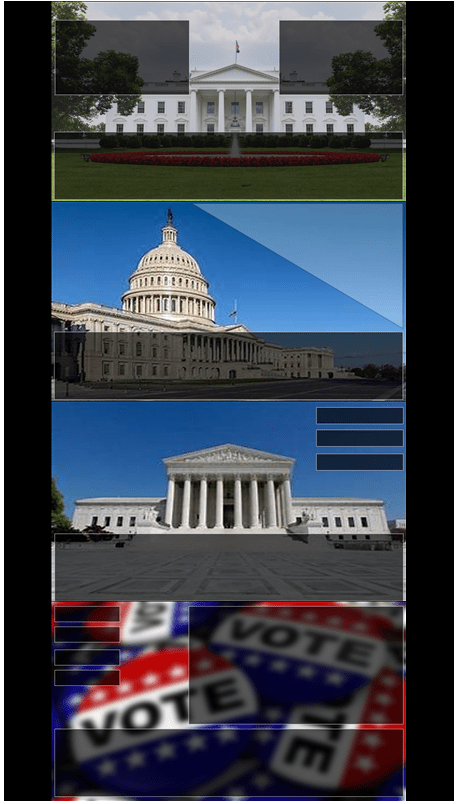
Here are some steps in producing the dashboard template above:
- Scheme your thoughts on paper first
- What views are you going to show?
- Can you group them into groups that can be overlayed over each image?
- If you plan to use images as backgrounds to your visuals; it would be safe to modify those images in powerpoint where you can overlay transparent shapes to serve as frames for your visual tiles
- You can place tiled containers for your images into a vertical container and select distribute contents evenly
- This container should be the only container that is tiled over the fixed/custom size dashboard
- You can now overlay your created visuals over the image backgrounds with frames as FLOATING views
- Tip: Make sure to enable gridlines so that it is easier to place your floating visuals within your image frame shapes
- As long as your dashboard is a fixed size and the vertical container which serves as the image background container has the images distributed evenly; this will remain locked in place for you to overlay your floating visuals on top of the images
Join me below as I walk through a quick construction of the dashboard screenshot above:
 Ralph's Data World